¶ How to Add a "Send on Behalf" Address in Outlook
¶ 📌 Prerequisites
Before setting this up, make sure:
You have Microsoft 365 admin access, or the admin has granted you permissions.
The mailbox or shared address already exists.
The user has been granted Send on Behalf permission.
¶ 🔐 Step 1: Grant “Send on Behalf” Permission (Admin)
Go to Microsoft 365 Admin Center
Open Exchange Admin Center
Navigate to Recipients → Mailboxes
Select the mailbox or shared mailbox
Open Mailbox delegation
Under Send on behalf, click Add
Select the user and save changes
⏳ Note: Permission changes may take up to 30–60 minutes to apply.
¶ 📅 Step 2: Add the Address in Outlook (Desktop App)
Open Outlook
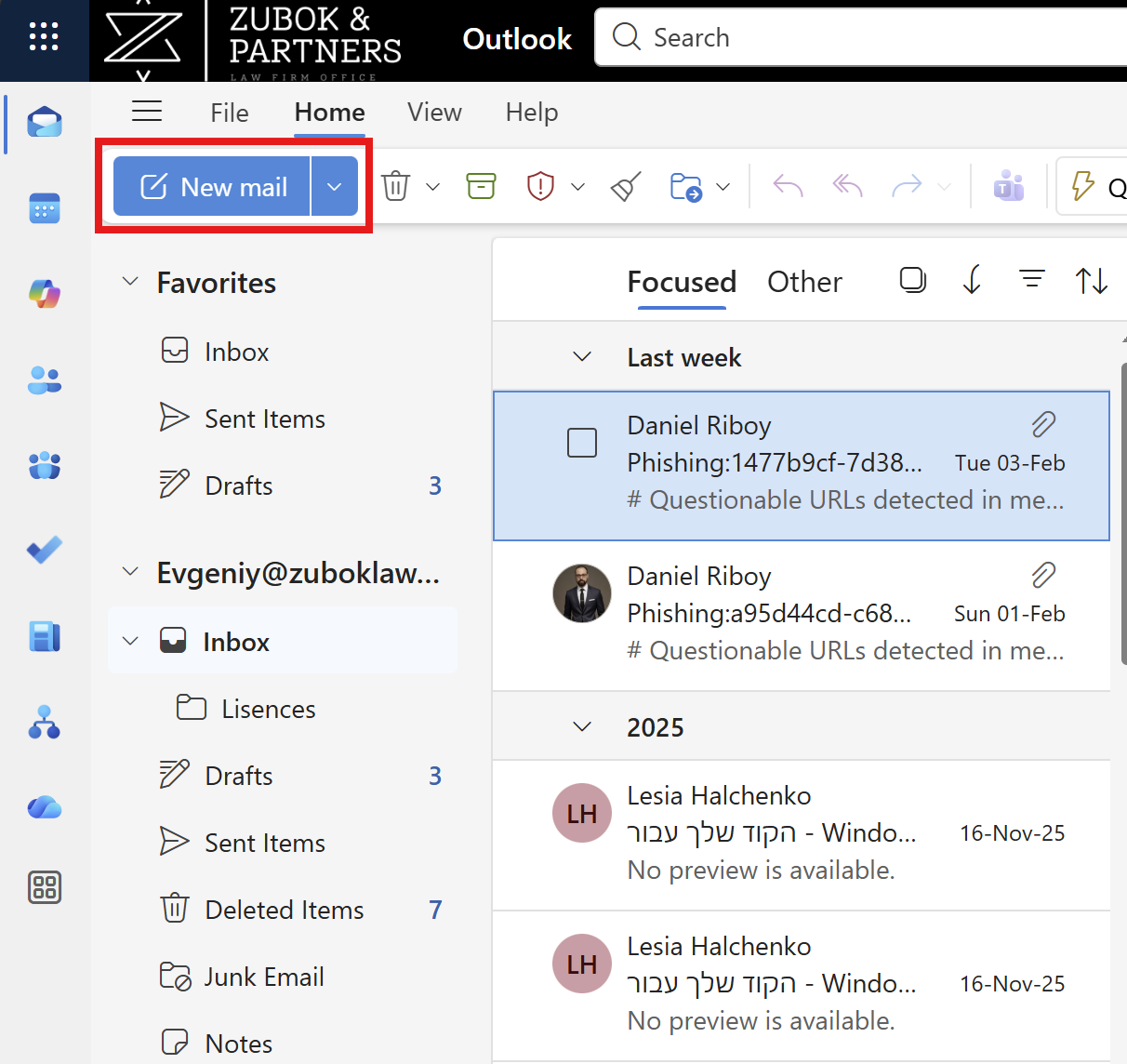
Click New Email
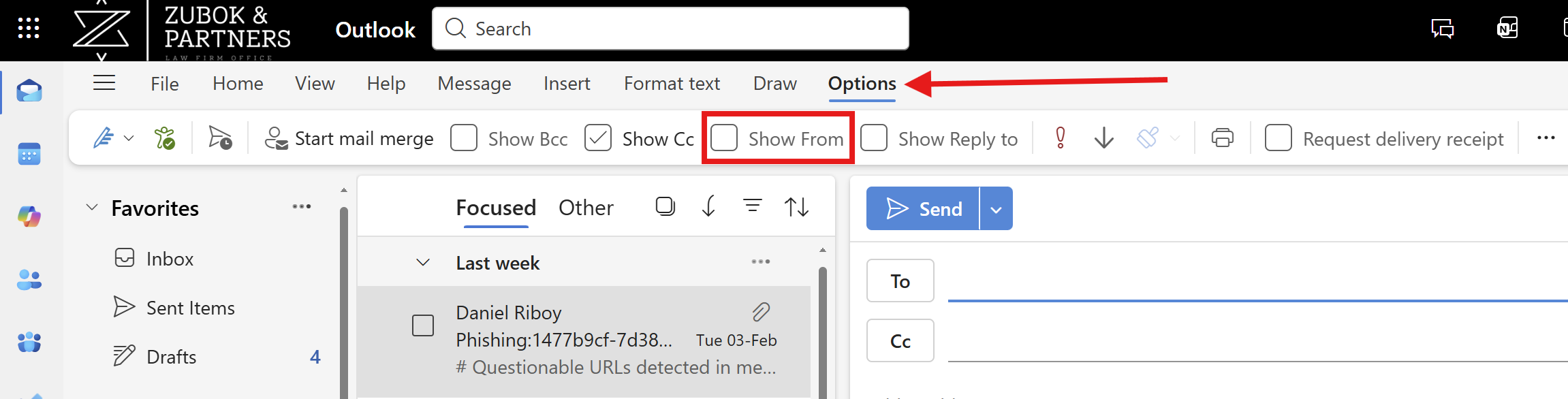
In the message window, click Options
Select Show From (this makes the From field visible)
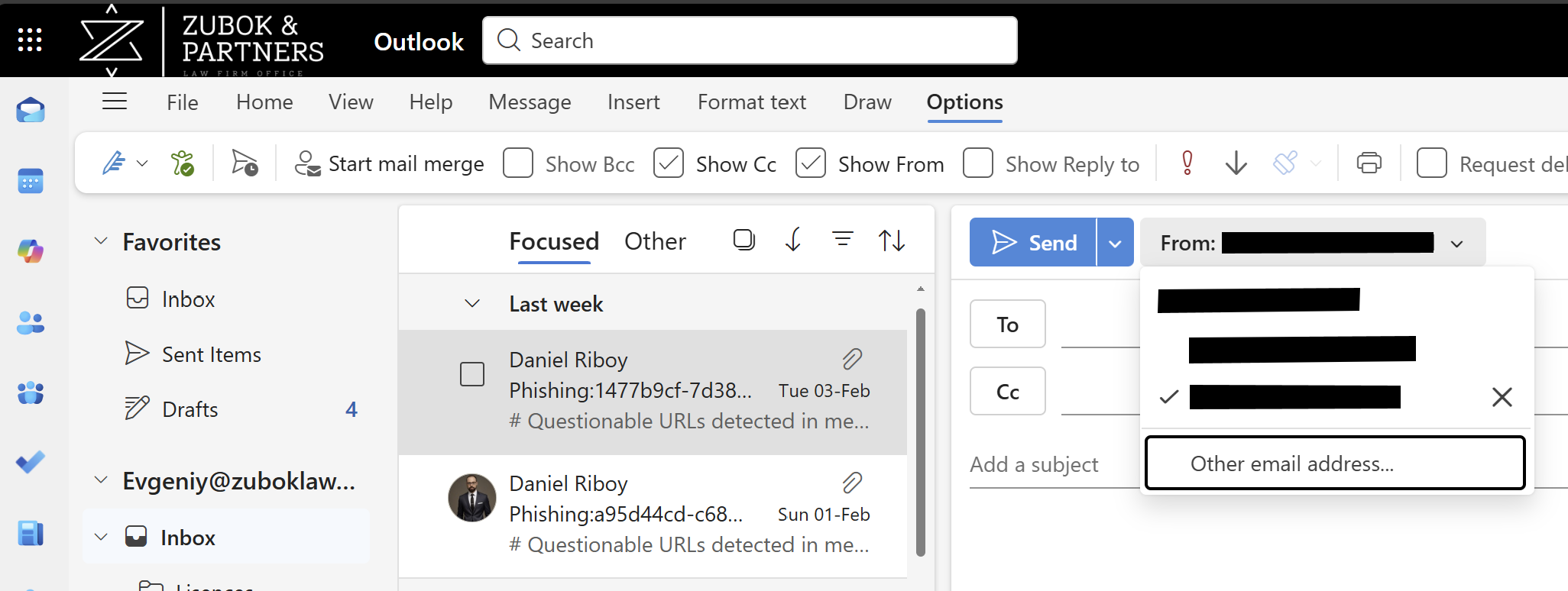
Click From → Other Email Address
If the address is not in the list, click on the Other email Address
Enter manually the email address you were granted permission for
Send the email
Outlook will remember this address for future use.
¶ 🌐 Step 3: Add the Address in Outlook Web (OWA)
Go to Outlook Web (outlook.office.com)
Click New mail
Click the three dots (⋯) → Show From
Click From → Other email address
Enter the shared or delegated address
Send the message
¶ Send on Behalf vs Send As
| Feature | What Recipients See |
|---|---|
| Send on Behalf | “User on behalf of mailbox” |
| Send As | Only the mailbox address |
If you need emails to look like they come only from the shared mailbox, ask your admin to assign Send As instead.
¶ Common Issues & Troubleshooting
Address doesn’t appear
Wait for permission propagation (up to 1 hour)
Restart Outlook
Clear cached addresses in the From field
Permission error
Verify the correct permission type was assigned
Check that you’re using the correct mailbox address
¶ Best Practices
Use Send on Behalf for transparency and accountability
Use Send As for official or automated communications
Document who has access to shared addresses