¶ How to Add Gmail to Outlook (Web, Windows, Mac)
Microsoft allows 365 subscribers to add their Gmail accounts to Microsoft Outlook seamlessly. Adding your Gmail to Outlook provides a streamlined and centralized approach to email management.
So, whether you’re a Windows or Mac user, this article will offer steps to seamlessly connect your Gmail account, allowing you to receive Gmail messages on your Outlook app.
¶ How to Add Gmail to Outlook on Windows
When adding a Gmail account to Outlook on your Windows PC, whether it’s your first or an additional one, the following steps apply:
1. In the upper left corner of the Outlook dashboard, click “File” and choose “Add Account.”

2. Enter your Gmail ID and click the “Connect” button.
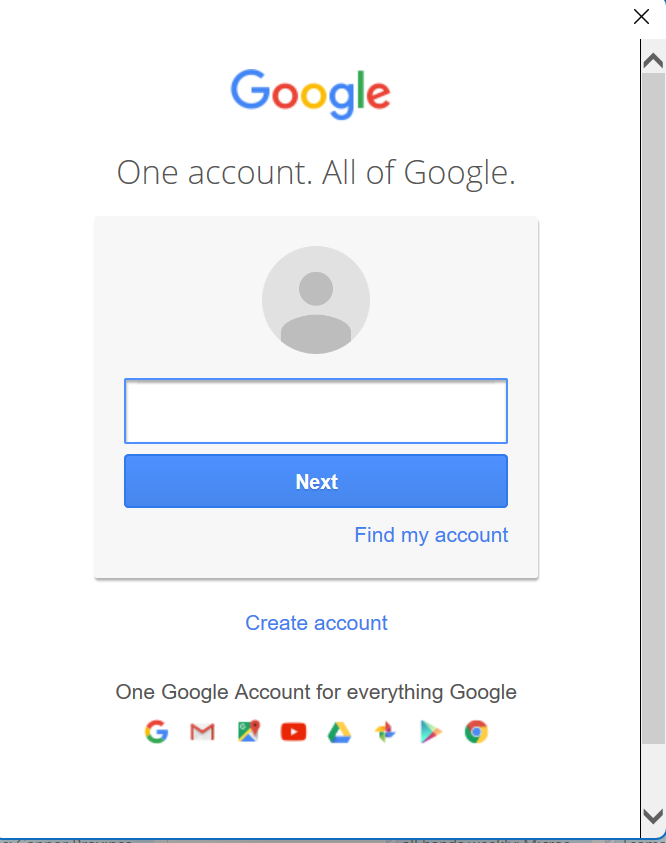
3. A prompt from Gmail in Outlook will request your password. Provide it and select “Sign in.”
Note: After linking your Gmail account, a notification might appear in your Gmail indicating a new login via a web browser. This is a standard notification and nothing to worry about.
4. If you have set up 2-step verification for Gmail, enter the code you receive on your phone. If this doesn’t apply to you, proceed to the next step.
5. When you receive a Google permissions prompt, click “Allow.”
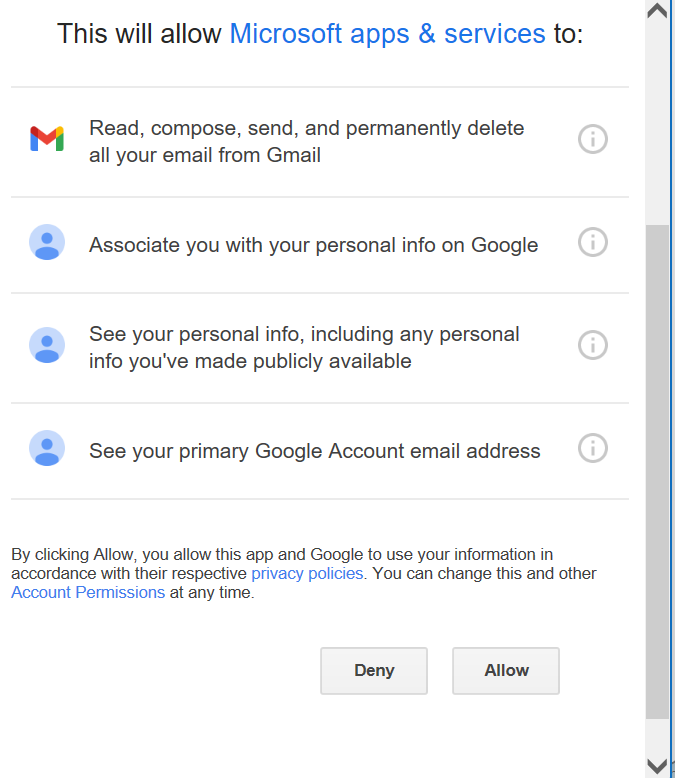
6. If you would like to add additional accounts to Outlook, repeat the steps above or click “Done.”
¶ How to Add Gmail to Outlook on Mac
For Mac users of Outlook, you can easily add your Gmail account in the following steps:
1. Launch Outlook for your Mac computer.
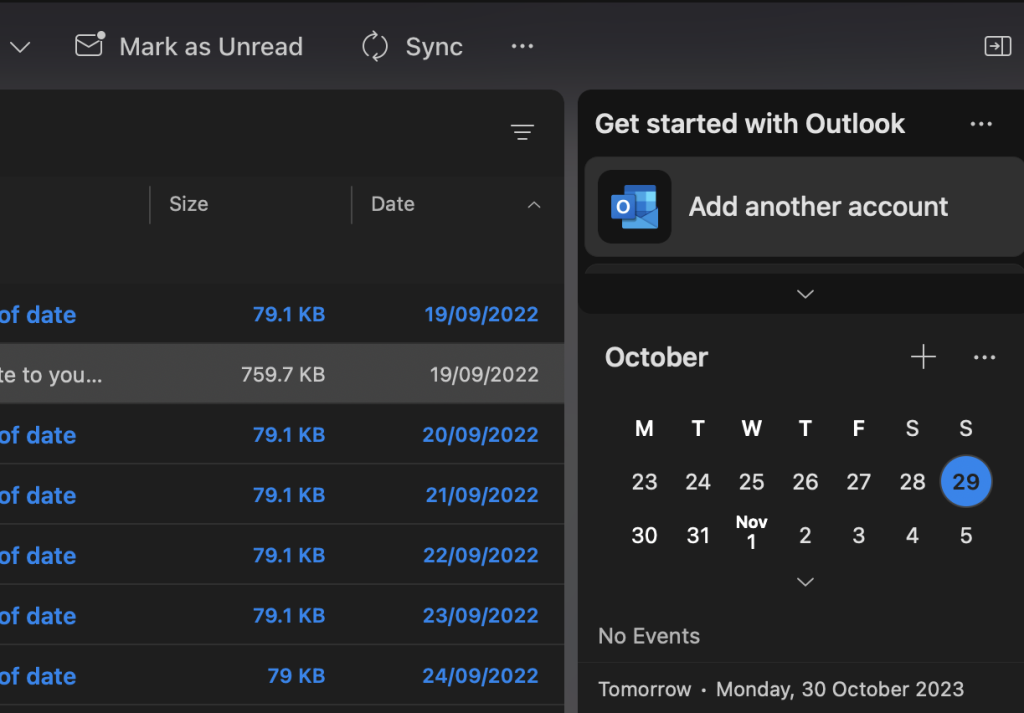
2. Click « Add another account (newer versions of Outlook) or click the “+” sign, then “New Account.”
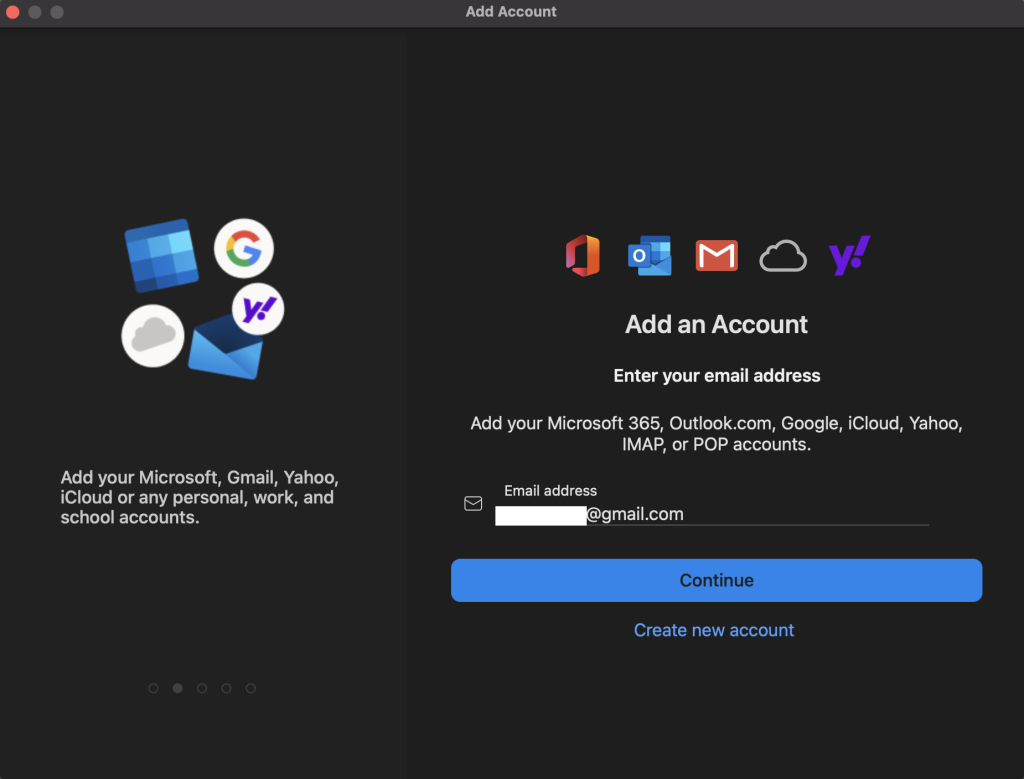
3. Enter your Gmail address and password and click “Continue.” Outlook should automatically detect the Gmail settings. If not, enter your settings manually, as mentioned in the steps for Windows above.
4. Log in to your Gmail account within the Outlook for Mac app.
5. Select an account to sign in.
6. Enter your account password, then click “Allow” in the permissions window that appears.
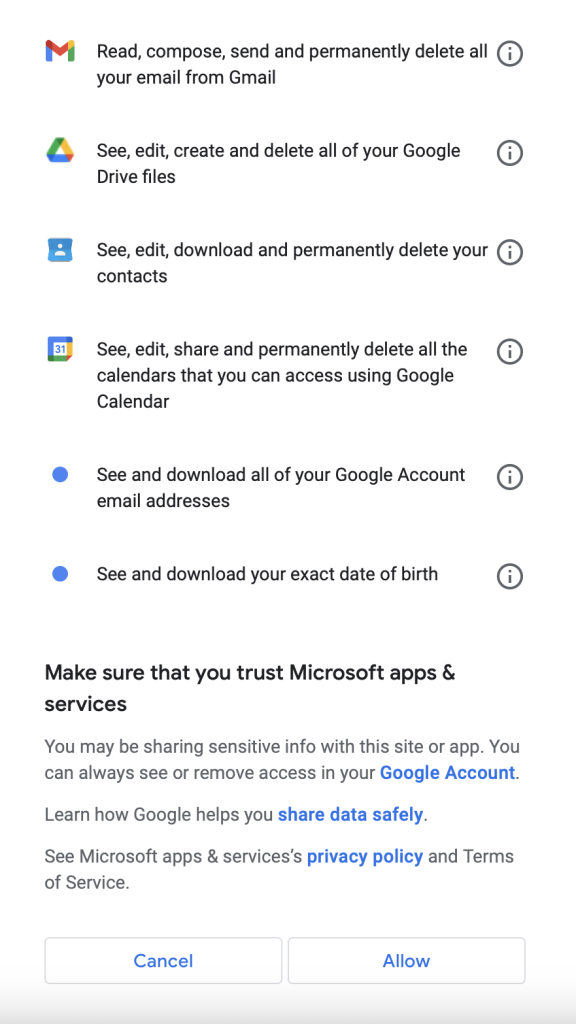
7. In the “Open Microsoft Outlook” pop-up that appears, click “Open Microsoft Outlook.”
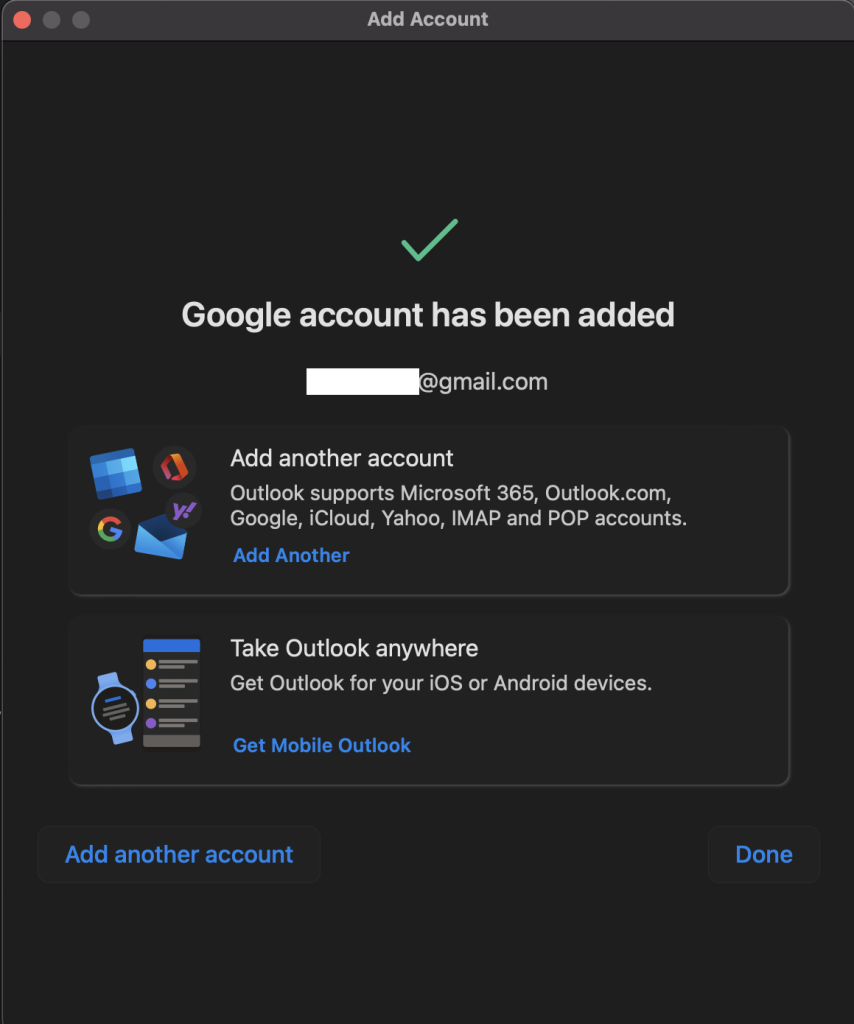
8. Click “Done.” Your Gmail account has now been added to Outlook.
¶ How to add a Gmail account to Outlook Web (Outlook.com)
Microsoft discontinued the feature that allows to add additional accounts to Outlook.com on May 10, 2021. However, accounts that were linked before this date will still synchronize.
¶ Why is My Gmail Not Working in Outlook?
There could be several reasons your Gmail account could fail to connect with Outlook. Below are a few possible issues and potential solutions:
¶ 1. Incorrect Settings
One common reason could be incorrect IMAP/SMTP settings. These are common protocols necessary for retrieving and sending emails.
Solution: Ensure that you have the correct server names and port numbers. The incoming server (IMAP) should be set as imap.gmail.com, and the outgoing server (SMTP) should be smtp.gmail.com. The IMAP port should be 993, and the SMTP port should be 587.
After fixing the settings, try sending a test email to ensure the connection works properly.
¶ 2. Two-Factor Authentication
Gmail accounts with two-factor authentication (2FA) need app-specific passwords to connect with Outlook. App-specific passwords maintain account security by allowing you to grant access to your account in a controlled manner.
Solution: Generate an app-specific password from settings in your Google account and use this password when configuring your Gmail account in Outlook.
¶ 3. Outdated Outlook Version
Outdated versions of Microsoft Outlook may not support the latest Gmail protocols, causing sync issues.
Solution: Regularly update Microsoft Outlook to the latest version available and ensure it is compatible with the latest Gmail protocols. If you still experience issues after updating, contact Microsoft Support for additional assistance and/or advice.
¶ 4. Internet Connectivity Issues
A poor or unstable internet connection can disrupt the synchronization between Gmail and Outlook.
Solution: Check your internet connection to ensure it is stable and has sufficient speed. You can run a speed test to evaluate the connection speed and stability, ensuring it meets the necessary requirements for synchronization. Restart your router and/or contact your internet service provider (ISP) if the problem persists.
¶ 5. Corrupted Outlook Profile
In rare cases, a corrupted Outlook profile may block access to Gmail.
Solution: Contact Microsoft Support for assistance if you suspect that you have an issue with your Outlook profile. If feasible, create a fresh Outlook profile and configure your Gmail account again.
If you decide to go this route, remember to back up your Outlook data before creating a new profile to avoid any potential data loss.
¶ 6. Firewall or Antivirus Settings
Firewall or antivirus software settings can block the connection between Outlook and Gmail, preventing them from syncing.
Solution: Adjust the settings to allow the connection and see if that resolves the issue.